Channels
Qqbot
 By
By QQ Bot Channel Plugin for OpenClaw
Install
npm install --omit=devConfiguration Example
{
  "channels": {
    "qqbot": {
      "enabled": true,
      "appId": "Your AppID",
      "clientSecret": "Your AppSecret"
    }
  }
}
README
<div align="center">
<img width="120" src="https://img.shields.io/badge/🤖-QQ_Bot-blue?style=for-the-badge" alt="QQ Bot" />
# QQ Bot Channel Plugin for OpenClaw
**Connect your AI assistant to QQ — private chat, group chat, and rich media, all in one plugin.**
[](./LICENSE)
[](https://bot.q.qq.com/wiki/)
[](https://github.com/tencent-connect/openclaw-qq)
[](https://nodejs.org/)
[](https://www.typescriptlang.org/)
<br/>
**[简体中文](README.zh.md) | English**
Scan to join the QQ group chat
<img width="300" height="540" alt="Clipboard_Screenshot_1773047715" src="https://github.com/user-attachments/assets/4d2d2337-229a-42ad-97ab-8a6d0607f296" />
</div>
---
## ✨ Features
| Feature | Description |
|---------|-------------|
| 🔒 **Multi-Scene** | C2C private chat, group @messages, channel messages, channel DMs |
| 🖼️ **Rich Media** | Send & receive images, voice, video, and files |
| 🎙️ **Voice (STT/TTS)** | Speech-to-text transcription & text-to-speech replies |
| ⏰ **Scheduled Push** | Proactive message delivery via scheduled tasks |
| 🔗 **URL Support** | Direct URL sending in private chat (no restrictions) |
| ⌨️ **Typing Indicator** | "Bot is typing..." status shown in real-time |
| 🔄 **Hot Reload** | Install via npm with seamless hot updates |
| 📝 **Markdown** | Full Markdown formatting support |
| 🛠️ **Commands** | Native OpenClaw command integration |
---
## 📸 Feature Showcase
> **Note:** This plugin serves as a **message channel** only — it relays messages between QQ and OpenClaw. Capabilities like image understanding, voice transcription, drawing, etc. depend on the **AI model** you configure and the **skills** installed in OpenClaw, not on this plugin itself.
<details>
<summary><b>🎙️ Voice Messages (STT)</b> — AI understands voice messages, auto-transcribes speech to text</summary>
> **You**: *(send a voice message)* "What's the weather like tomorrow in Shenzhen?"
>
> **QQBot**: Tomorrow (March 7, Saturday) Shenzhen weather forecast 🌤️ ...
<img width="360" src="docs/images/fc7b2236896cfba3a37c94be5d59ce3e_720.jpg" alt="Voice STT Demo" />
</details>
<details>
<summary><b>📄 File Understanding</b> — Send any file, AI reads and understands it</summary>
> **You**: *(send a TXT file of "War and Peace")*
>
> **QQBot**: Got it! You uploaded the Chinese version of "War and Peace" by Leo Tolstoy. This appears to be the opening of Chapter 1...
<img width="360" src="docs/images/07bff56ab68e03173d2af586eeb3bcee_720.jpg" alt="File Understanding Demo" />
</details>
<details>
<summary><b>🖼️ Image Understanding</b> — Vision-capable models can see and describe images</summary>
> **You**: *(send an image)*
>
> **QQBot**: Haha, so cute! Is that a QQ penguin in a lobster costume? 🦞🐧 ...
<img width="360" src="docs/images/59d421891f813b0d3c0cbe12574b6a72_720.jpg" alt="Image Understanding Demo" />
</details>
<details>
<summary><b>🎨 Image Generation</b> — Ask the bot to draw, it sends the result back</summary>
> **You**: Draw me a cat
>
> **QQBot**: Here you go! 🐱
<img width="360" src="docs/images/4645f2b3a20822b7f8d6664a708529eb_720.jpg" alt="Image Generation Demo" />
</details>
<details>
<summary><b>🔊 Voice Reply (TTS)</b> — Bot replies with voice messages</summary>
> **You**: Tell me a joke in voice
>
> **QQBot**: *(sends a voice message)*
<img width="360" src="docs/images/21dce8bfc553ce23d1bd1b270e9c516c.jpg" alt="TTS Voice Demo" />
</details>
<details>
<summary><b>📎 File Sending</b> — Generate and send files of any format (up to 20MB)</summary>
> **You**: Extract chapter 1 of War and Peace and send it as a file
>
> **QQBot**: *(sends a .txt file)*
<img width="360" src="docs/images/17cada70df90185d45a2d6dd36e92f2f_720.jpg" alt="File Sending Demo" />
</details>
<details>
<summary><b>🎬 Video Sending</b> — Send videos, large files auto-show upload progress</summary>
> **You**: Send me a demo video
>
> **QQBot**: *(sends a video)*
<img width="360" src="docs/images/85d03b8a216f267ab7b2aee248a18a41_720.jpg" alt="Video Sending Demo" />
</details>
> For a deep dive into rich media capabilities, see the [Media Guide](docs/qqbot-media-guide.md).
---
## ⭐ Star History
<div align="center">
[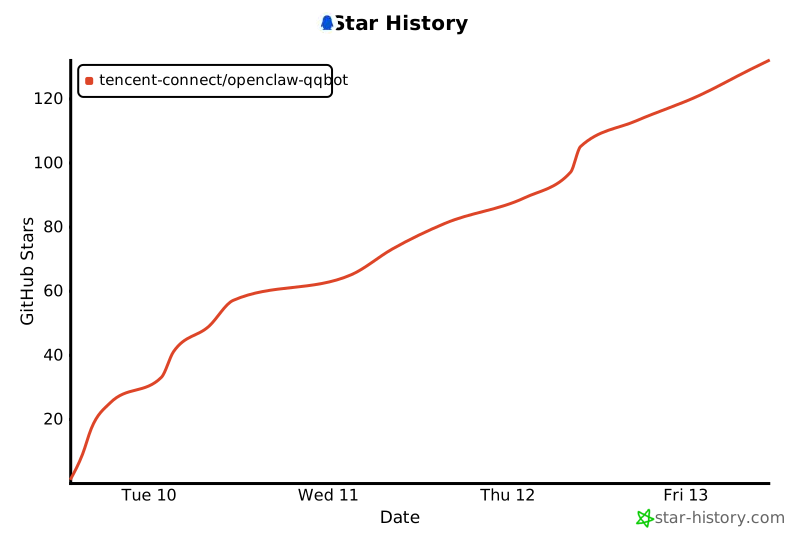](https://www.star-history.com/#tencent-connect/openclaw-qqbot&type=date&legend=top-left)
</div>
---
## 🚀 Getting Started
### Step 1 — Create a QQ Bot on the QQ Open Platform
1. Go to the [QQ Open Platform](https://q.qq.com/) and **scan the QR code with your phone QQ** to register / log in. If you haven't registered before, scanning will automatically complete the registration and bindyour QQ account.
<img width="3246" height="1886" alt="Clipboard_Screenshot_1772980354" src="https://github.com/user-attachments/assets/d8491859-57e8-47e4-9d39-b21138be54d0" />
2. After scanning, tap **Agree** on your phone — you'll land on the bot configuration page.
3. Click **Create Bot** to create a new QQ bot.
<img width="1982" height="1316" alt="Clipboard_Screenshot_1772980440" src="https://github.com/user-attachments/assets/3ccb494d-6e4d-462c-9218-b4dfd43a254f" />
4. Find **AppID** and **AppSecret** on the bot's page, click **Copy** for each, and save them somewhere safe (e.g., a notepad). **AppSecret is not stored in plaintext — if you leave the page without saving it, you'll have to regenerate a new one.**
<img width="1670" height="1036" alt="Clipboard_Screenshot_1772980413" src="https://github.com/user-attachments/assets/b898d171-5711-4d42-bc07-2de967b119ec" />
> For a step-by-step walkthrough with screenshots, see the [official guide](https://cloud.tencent.com/developer/article/2626045).
> ⚠️ The bot will automatically appear in your QQ message list and send a first message. However, it will reply "The bot has gone to Mars" until you complete the configuration steps below.
### Step 2 — Install the Plugin
**Option A: One-Click Install & Run (Recommended)**
```bash
git clone https://github.com/tencent-connect/openclaw-qq.git && cd openclaw-qq
bash ./scripts/upgrade-and-run.sh --appid YOUR_APPID --secret YOUR_SECRET
```
The script handles everything: cleanup old plugins → install deps → register plugin → configure channel → start service. Once done, skip to [Step 4](#step-4--start--test).
**Option B: Manual Step-by-Step**
```bash
git clone https://github.com/tencent-connect/openclaw-qq.git && cd openclaw-qq
npm install --omit=dev
openclaw plugins install .
```
### Step 3 — Configure OpenClaw
**Option 1: CLI Wizard (Recommended)**
```bash
openclaw channels add --channel qqbot --token "AppID:AppSecret"
```
**Option 2: Edit Config File**
Edit `~/.openclaw/openclaw.json`:
```json
{
"channels": {
"qqbot": {
"enabled": true,
"appId": "Your AppID",
"clientSecret": "Your AppSecret"
}
}
}
```
### Step 4 — Start & Test
```bash
openclaw gateway
```
Open QQ, find your bot, and send a message!
<div align="center">
<img width="500" alt="Chat Demo" src="https://github.com/user-attachments/assets/b2776c8b-de72-4e37-b34d-e8287ce45de1" />
</div>
---
## 🤖 Multi-Account Setup (Multi-Bot)
Run multiple QQ bots under a single OpenClaw instance.
### Configuration
Edit `~/.openclaw/openclaw.json` and add an `accounts` field under `channels.qqbot`:
```json
{
"channels": {
"qqbot": {
"enabled": true,
"appId": "111111111",
"clientSecret": "secret-of-bot-1",
"accounts": {
"bot2": {
"enabled": true,
"appId": "222222222",
"clientSecret": "secret-of-bot-2"
},
"bot3": {
"enabled": true,
"appId": "333333333",
"clientSecret": "secret-of-bot-3"
}
}
}
}
}
```
**Notes:**
- The top-level `appId` / `clientSecret` is the **default account** (accountId = `"default"`)
- Each key under `accounts` (e.g. `bot2`, `bot3`) is the `accountId` for that bot
- Each account can independently configure `enabled`, `name`, `allowFrom`, `systemPrompt`, etc.
- You may also skip the top-level default account and only configure bots inside `accounts`
Add a second bot via CLI (if the framework supports the `--account` parameter):
```bash
openclaw channels add --channel qqbot --account bot2 --token "222222222:secret-of-bot-2"
```
### Sending Messages to a Specific Account's Users
When using `openclaw message send`, specify which bot to use with the `--account` parameter:
```bash
# Send with the default bot (no --account = uses "default")
openclaw message send --channel "qqbot" \
--target "qqbot:c2c:OPENID" \
--message "hello from default bot"
# Send with bot2
openclaw message send --channel "qqbot" \
--account bot2 \
--target "qqbot:c2c:OPENID" \
--message "hello from bot2"
```
**Target Formats:**
| Format | Description |
|--------|-------------|
| `qqbot:c2c:OPENID` | Private chat (C2C) |
| `qqbot:group:GROUP_OPENID` | Group chat |
| `qqbot:channel:CHANNEL_ID` | Guild channel |
> ⚠️ **Important**: Each bot has its own set of user OpenIDs. An OpenID received by Bot A **cannot** be used to send messages via Bot B — this will result in a 500 error. Always use the matching bot's `accountId` to send messages to its users.
### How It Works
- When `openclaw gateway` starts, all accounts with `enabled: true` launch their own WebSocket connections
- Each account maintains an independent Token cache (isolated by `appId`), preventing cross-contamination
- Incoming message logs are prefixed with `[qqbot:accountId]` for easy debugging
---
## 🎙️ Voice Configuration (Optional)
... (truncated)
channels


Comments
Sign in to leave a comment