Integration
Captcha Solver
 By
By A integration guide and plugin configuration for OpenClaw, enabling automatic CAPTCHA solving using CapSolver
Configuration Example
{
  "plugins": {
    "entries": {
      "capsolver": {
        "enabled": true,
        "config": {
          "apiKey": "CAP-XXXXXXXXXXXXXXXXXXXXXXXXXXXXXXXX" // Replace with your actual CapSolver API Key
        }
      }
    }
  }
}
README
# openclaw-captcha-solver
[](https://opensource.org/licenses/MIT) [](https://github.com/openclaw/openclaw) [](https://www.capsolver.com/)
## Introduction
When your AI assistant navigates the web, **CAPTCHAs** often pose a significant barrier. These challenges can halt automated browsing, prevent form submissions, and require human intervention, disrupting the AI's workflow.
**[OpenClaw](https://github.com/openclaw/openclaw)** is a powerful personal AI assistant designed for web browsing, form filling, button clicking, and data extraction, all driven by natural language commands. However, like any browser automation tool, it encounters difficulties with CAPTCHAs.
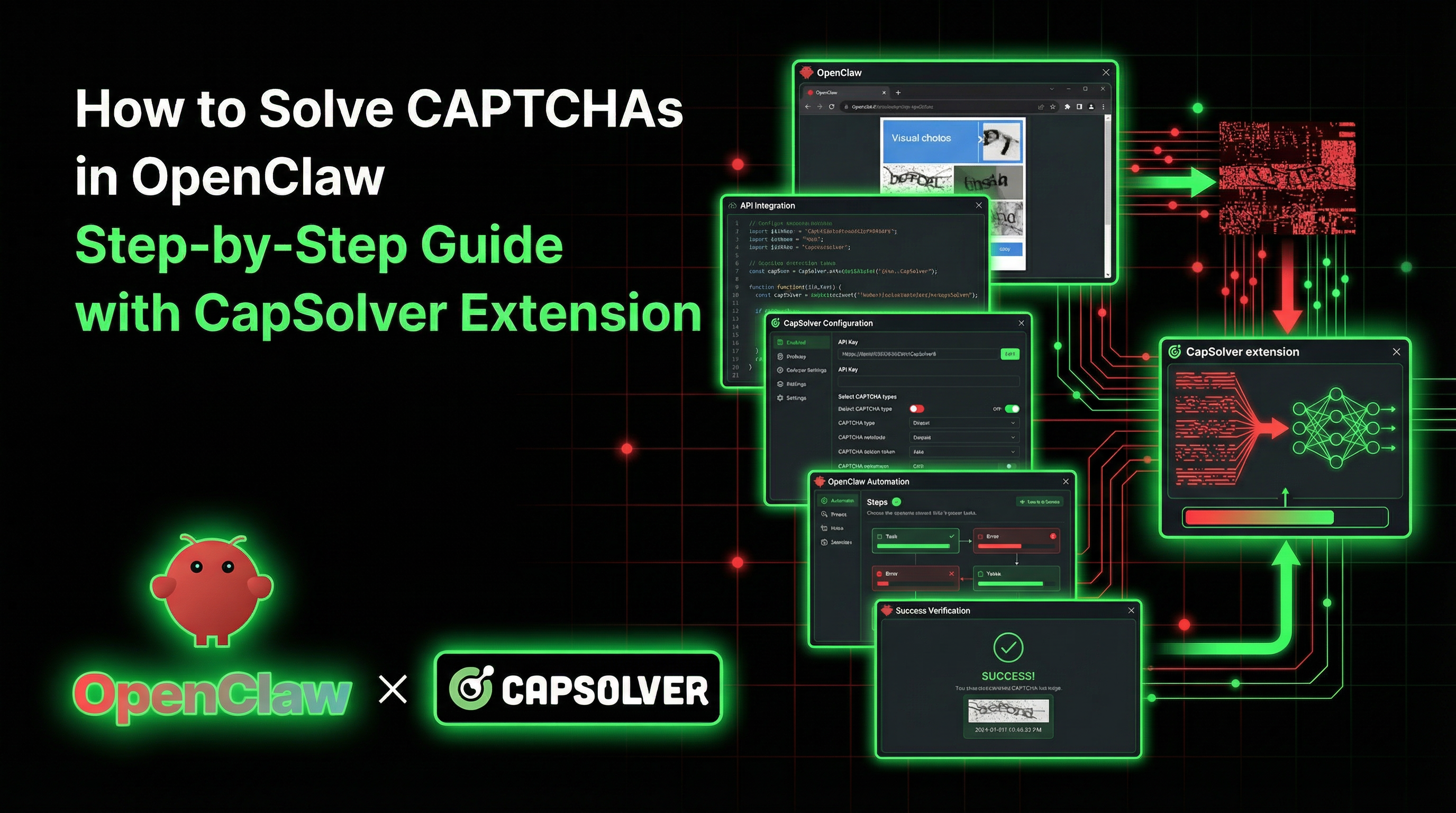
This integration leverages **[CapSolver](https://www.capsolver.com/?utm_source=official&utm_medium=blog&utm_campaign=openclaw)** to revolutionize this experience. By seamlessly loading the CapSolver Chrome extension directly into OpenClaw's dedicated browser environment, CAPTCHAs are resolved **automatically and transparently** in the background. This eliminates the need for manual code changes, API calls, or alterations to how you interact with your AI assistant.
The most compelling aspect of this solution is its simplicity: **you don't need to explicitly instruct the AI about CAPTCHAs.** Simply direct your AI to pause briefly before submitting a form, and by the time it proceeds, the CAPTCHA will have already been solved.
---
## 📖 Table of Contents
* [🚀 Introduction](#-introduction)
* [🤖 What is OpenClaw?](#-what-is-openclaw)
* [✨ Key Features](#-key-features)
* [🌐 The Browser Tool](#-the-browser-tool)
* [🛡️ What is CapSolver?](#%EF%B8%8F-what-is-capsolver)
* [✅ Supported CAPTCHA Types](#-supported-captcha-types)
* [💡 Why This Integration Stands Out](#-why-this-integration-stands-out)
* [🛠️ Prerequisites](#%EF%B8%8F-prerequisites)
* [⚠️ Important: Use Chromium or Chrome for Testing](#%EF%B8%8F-important-use-chromium-or-chrome-for-testing)
* [⚙️ Step-by-Step Setup](#%EF%B8%8F-step-by-step-setup)
* [Step 1: Obtain the CapSolver Chrome Extension](#step-1-obtain-the-capsolver-chrome-extension)
* [Step 2: Enable the CapSolver Plugin](#step-2-enable-the-capsolver-plugin)
* [Step 3: Configure the Browser](#step-3-configure-the-browser)
* [Step 4: Restart the OpenClaw Gateway](#step-4-restart-the-openclaw-gateway)
* [Step 5: Verify the Setup](#step-5-verify-the-setup)
* [🚀 How to Use It](#-how-to-use-it)
* [The Golden Rule](#the-golden-rule)
* [Example 1: Basic Form Submission](#example-1-basic-form-submission)
* [❓ Frequently Asked Questions (FAQ)](#-frequently-asked-questions-faq)
* [🤝 Contributing](#-contributing)
* [⚖️ License](#%EF%B8%8F-license)
* [🙏 Acknowledgements](#-acknowledgements)
---
## 🤖 What is OpenClaw?
OpenClaw is an open-source personal AI assistant that operates on your local devices, ensuring your data remains private. It integrates with various communication channels, including WhatsApp, Telegram, Slack, Discord, Signal, iMessage, and Google Chat, allowing you to interact with your AI where you already communicate.
### ✨ Key Features
* 💬 **Multi-channel Inbox**: Engage with your AI across popular messaging platforms.
* 🌐 **Built-in Browser**: The agent features a dedicated Chromium browser profile, enabling it to open tabs, navigate pages, interact with elements, and capture screenshots.
* 🔒 **Local-first Architecture**: Runs on your hardware, ensuring data privacy and control.
* 🔌 **Plugin System**: Extensible through custom extensions and integrations.
* 🗣️ **Voice Support**: Interact with your agent using voice commands on macOS, iOS, and Android.
### 🌐 The Browser Tool
OpenClaw utilizes a **dedicated Chromium browser profile** that is exclusively controlled by the AI agent and completely isolated from your personal browsing activities. This browser empowers the agent to:
* ➡️ Access and navigate to any URL.
* 📖 Read page content and capture snapshots.
* 🖱️ Perform interactions such as clicking buttons, filling forms, and selecting dropdown options.
* 📸 Generate screenshots and PDF documents.
* 📂 Manage multiple browser tabs.
Essentially, it provides your AI assistant with its own independent browsing environment.
---
## 🛡️ What is CapSolver?
[CapSolver](https://www.capsolver.com/?utm_source=official&utm_medium=blog&utm_campaign=openclaw) is a leading CAPTCHA solving service that provides AI-powered solutions for bypassing various CAPTCHA challenges. With support for multiple CAPTCHA types and fast response times, CapSolver integrates seamlessly into automated workflows.
### ✅ Supported CAPTCHA Types
CapSolver offers comprehensive support for a wide array of CAPTCHA types, including:
* 🤖 [**reCAPTCHA v2**](https://www.capsolver.com/products/recaptchav2) (both image-based and invisible variants)
* 🚀 [**reCAPTCHA v3 & v3 Enterprise**](https://www.capsolver.com/products/recaptchav3)
* ☁️ [**Cloudflare Turnstile**](https://www.capsolver.com/products/cloudflare)
* ⏱️ [**Cloudflare 5-second Challenge**](https://docs.capsolver.com/en/guide/captcha/cloudflare_challenge/)
* 🛡️ [**AWS WAF CAPTCHA**](https://www.capsolver.com/products/awswaf)
* ➕ And many [other widely used CAPTCHA and anti-bot mechanisms](https://docs.capsolver.com/en/guide/api-server/).
---
## 💡 Why This Integration Stands Out
Traditional CAPTCHA-solving integrations typically demand significant code development, involving API calls, result polling, and token injection into hidden form fields, as seen with tools like [Crawlee](https://www.capsolver.com/blog/web-scraping/crawlee-capsolver), Puppeteer, or Playwright.
**The OpenClaw + CapSolver integration offers a fundamentally different and simplified approach:**
| Feature | Traditional (Code-Based) | OpenClaw (Natural Language) |
| :-------------------------------- | :---------------------------------------- | :-------------------------------------- |
| **Implementation** | Write a `CapSolverService` class | Enable a plugin in config |
| **Interaction** | Call `createTask()` / `getTaskResult()` | Just talk to your AI |
| **Token Injection** | Inject tokens via `page.$eval()` | The extension handles everything |
| **Error Handling** | Handle errors, retries, timeouts in code | Tell the AI to "wait 60 seconds, then submit" |
| **CAPTCHA Type Support** | Different code for each CAPTCHA type | Works for all types automatically |
**The core innovation** lies in the CapSolver Chrome extension operating directly within the agent's browser session. When the AI agent navigates to a page containing a CAPTCHA, the extension automatically detects it, solves it in the background, and injects the necessary token – all before the agent even attempts to submit the form.
**The only requirement is to allow sufficient time.** Instead of explicitly instructing the AI to solve the CAPTCHA, you simply provide an instruction like:
> "Go to that page, **wait 60 seconds**, then click Submit."
This straightforward approach means the AI does not require any explicit knowledge of CapSolver.
---
## 🛠️ Prerequisites
Before proceeding with the integration setup, ensure you have the following:
1. ✅ **OpenClaw** installed and its gateway service running.
2. 🔑 **A CapSolver account** with an active API key. You can [sign up here](https://www.capsolver.com/?utm_source=official&utm_medium=blog&utm_campaign=openclaw).
3. 🌐 **Chromium or Chrome for Testing** installed. Refer to the important note below regarding browser compatibility.
### ⚠️ Important: Use Chromium or Chrome for Testing
> **Google Chrome 137+ (released mid-2025) has removed support for `--load-extension` in branded builds.** This critical change means that Chrome extensions **cannot be loaded** in automated sessions using standard Google Chrome. The flag is silently ignored, leading to unexpected behavior.
This limitation affects both Google Chrome and Microsoft Edge. Therefore, you **must** utilize one of the following alternatives:
| Browser | Extension Loading | Recommended? |
| :---------------------------- | :---------------- | :----------- |
| Google Chrome 137+ | ❌ Not supported | No |
| Microsoft Edge | ❌ Not supported | No |
| **Chrome for Testing** | ✅ **Supported** | **Yes** |
| **Chromium (standalone)** | ✅ **Supported** | **Yes** |
| Playwright's bundled Chromium | ✅ **Supported** | **Yes** |
**Installation Guide for Chrome for Testing:**
```bash
# Option 1: Via Playwright (Recommended for ease of management)
npx playwright install chromium
# The executable binary will typically be located at a path similar to:
# Linux: ~/.cache/ms-playwright/chromium-XXXX/chrome-linux64/chrome
# macOS: ~/Library/Caches/ms-playwright/chromium-XXXX/chrome-mac/Chromium.app/Contents/MacOS/Chromium
```
```bash
# Option 2: Direct Download from Chrome for Testing
# Visit: https://googlechromelabs.github.io/chrome-for-testing/
# Download the appropriate version for your operating system.
```
After installation, make sure to note the full path to the browser binary, as it will be required for your OpenClaw configurati
... (truncated)
integration


Comments
Sign in to leave a comment